How to animate a photo: 5 easy ways to bring still images to life
Animating a still photo used to require After Effects, a cinematographer, and a weekend. In 2026, an AI can do it in 2–5 minutes. Here are the five best ways to animate a photo — ranked by ease, cost, and final quality.
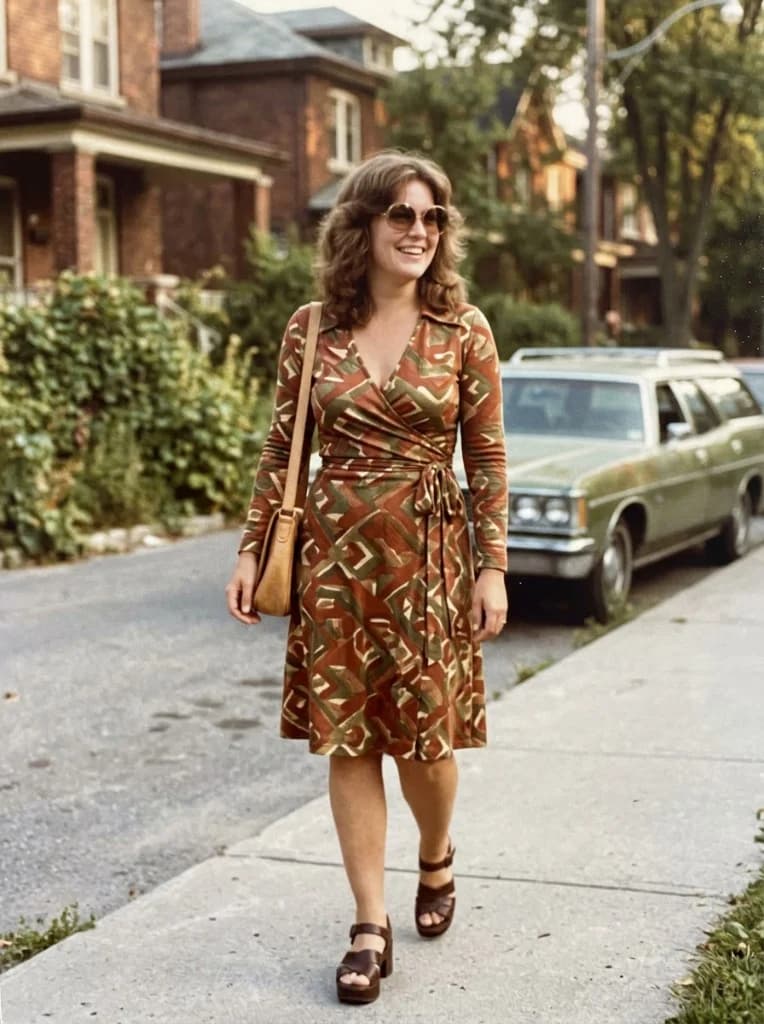
Drag the slider — still portrait on the left, AI-animated frame on the right. (Final result is a moving video.)
Why animate a photo?
Animated photos create an emotional response no still image can match. The most common reasons people animate a photo:
- Tribute reels — bringing a late relative back for a memorial slideshow, funeral service, or anniversary video.
- Family archives — animating baby photos, wedding portraits, or great- grandparents so future generations can see them "in motion."
- Social content — standing out on Reels, TikTok, and YouTube Shorts with lifelike animated photos instead of static posts.
- Creative projects — cinematic intros, music videos, slideshow openers, and documentary B-roll.
AI photo animation (our pick)
Our pickStep by step
- 1.Upload your still photo to an AI animation tool (we recommend DuneLens Motion).
- 2.Choose a motion style: subtle breathing, camera drift, or cinematic pan.
- 3.Wait 2–5 minutes while the AI adds natural blinks, head tilts, and camera movement.
- 4.Download an HD MP4 ready for Reels, TikTok, memorials, or family archives.
Pros
- Photorealistic — the AI adds subtle, believable motion (never uncanny)
- Works on old black-and-white photos, scanned prints, and phone snaps
- No skill required — zero learning curve
- HD MP4 output, ready for social or broadcast
Cons
- Quality AI tools aren't fully free — DuneLens starts at $29.99 for 5 animations
- Requires a clear subject for best results
Try it with DuneLens Motion
Upload any photo — portrait, family shot, even a century-old B&W print — and watch it come to life with natural breathing, blinks, and camera drift. HD MP4 output, commercial rights, money-back guarantee.
Text-to-video / image-to-video models (Runway, Sora-style)
Step by step
- 1.Sign up for a generative video platform (Runway, Pika, Luma, etc.).
- 2.Upload your photo and write a prompt describing the motion you want.
- 3.Generate multiple takes, pick the best, and upscale if needed.
- 4.Export your final clip.
Pros
- Maximum creative flexibility — you can direct the motion with prompts
- Can add new elements or camera moves
- Useful for artistic or cinematic work
Cons
- Steep learning curve — prompt engineering required
- Results can be wildly unpredictable
- Monthly subscription ($15–$95)
- Less reliable on faces compared to purpose-built portrait animation
Photoshop cinemagraph (advanced)
Step by step
- 1.Open a short video clip or duplicate frames of your photo on the timeline.
- 2.Create a mask that isolates the area you want to move.
- 3.Use Content-Aware Fill or frame duplication to keep the rest static.
- 4.Export as a looping GIF or MP4.
Pros
- Total creative control
- Great for loopable social assets
Cons
- Requires Photoshop expertise
- Time-consuming — not viable for multiple photos
- Can't animate faces or generate new motion — only mask existing footage
Mobile animation apps
Step by step
- 1.Install a photo-animator app (look for one with honest pricing).
- 2.Select a still photo from your camera roll.
- 3.Pick a preset animation (breathe, blink, zoom, pan).
- 4.Save the animated MP4 or share directly.
Pros
- Fast and fun for social
- Many presets built-in
Cons
- Output quality and resolution are limited
- Many apps use aggressive subscription trials
- Limited control over motion quality
After Effects 2.5D parallax
Step by step
- 1.Separate your photo into foreground, midground, and background layers in Photoshop.
- 2.Import the layered PSD into After Effects as a composition.
- 3.Displace each layer on the Z-axis and animate a camera through the scene.
- 4.Add depth-of-field and grading, then render.
Pros
- The most cinematic result possible
- Used by agencies, music videos, and documentaries
Cons
- Extremely time-consuming
- Requires Photoshop + After Effects + a decent GPU
- Only fakes 3D camera motion — no lifelike face movement
Side-by-side comparison
Here's how the five methods stack up:
Pro tips & which photos animate best
Use high-resolution source photos
AI animators work best on clear, well-lit portraits and group shots. If your source is blurry, restore it first (try DuneLens Revive) before animating — the results will be dramatically better.
Pick photos with clear faces
Animation shines when there's a recognizable face to breathe and blink. Group photos, pets, and clear portraits all work. Avoid heavily-obscured subjects.
Match the motion to the moment
Tribute reels and memorial slideshows benefit from subtle, calm motion. Social content can handle more energetic movement. Most AI tools let you pick a motion style — match it to the vibe.
Keep clips short
Animated photos feel most lifelike in 3–8 second clips. Longer clips start to loop visibly. For Reels or TikTok, pair several short animated clips with music.
Export at native aspect ratio
Don't crop to square unless your destination requires it. Modern feeds (Reels, Shorts, TikTok) prefer 9:16 vertical. Most AI tools let you choose output ratio.
Photos that animate best
- Wedding photos and engagement portraits
- Great-grandparent and ancestor photos
- Baby and childhood portraits
- Pet photos
- Black-and-white or sepia prints (they animate beautifully)
- Graduation and milestone photos
- Tribute and memorial slideshows
Bottom line
If you want to animate a photo quickly and beautifully without learning new software, AI animation is the clear winner in 2026. DuneLens Motion handles portraits, group photos, and old B&W prints in 2–5 minutes, with natural motion that doesn't feel uncanny — all from $29.99.
For creative work that needs new camera moves, prompt-driven motion, or artistic effects, text-to-video tools like Runway and Luma are worth the subscription. Photoshop cinemagraphs and After Effects parallax remain the gold standard for professional agency work — but they're overkill for most people.
Before animating an old or blurry photo, consider restoring it first — our guide on how to unblur a photo walks through the best methods for that.
How to animate a photo: FAQ
Yes — and in 2026, the results are genuinely lifelike. Modern AI photo-animation tools add subtle blinks, breathing, head tilts, and camera drift that make still photos feel like they were captured as video. The best tools (like DuneLens Motion) finish in 2–5 minutes from a single image.
For fast, photorealistic portrait animation, DuneLens Motion ranks highest in our tests — it's purpose-built for faces and old photos. For more creative, prompt-driven motion (with new camera moves or creative effects), tools like Runway and Luma are worth trying.
Scan the photo at 600 DPI or higher. If it's blurry, restore it with an AI enhancer first. Then upload to an AI animation tool, pick a subtle motion style ('breathe + blink' works best for relatives), and download your HD video. The whole process takes under 10 minutes.
Free photo-animation tools exist, but they're limited — low-resolution output, watermarks, and often visible AI artifacts. For a real, shareable, HD result, expect to pay. DuneLens Motion starts at $29.99 for 5 animations with full HD output and commercial rights.
Yes — beautifully. Animating a century-old B&W portrait is one of the most popular use cases. The AI preserves the nostalgic B&W aesthetic while adding subtle, lifelike motion. If you want, you can also colorize the photo first using a restoration tool.
For Instagram Reels, TikTok, and YouTube Shorts, use 9:16 vertical. For Instagram feed posts, 1:1 square. For memorial slideshows and family archives, keep the original photo's aspect ratio. Most AI animators support all three.
Ready to animate your photo?
Upload a still image, pick a motion style, and download an HD animated video in under 5 minutes.